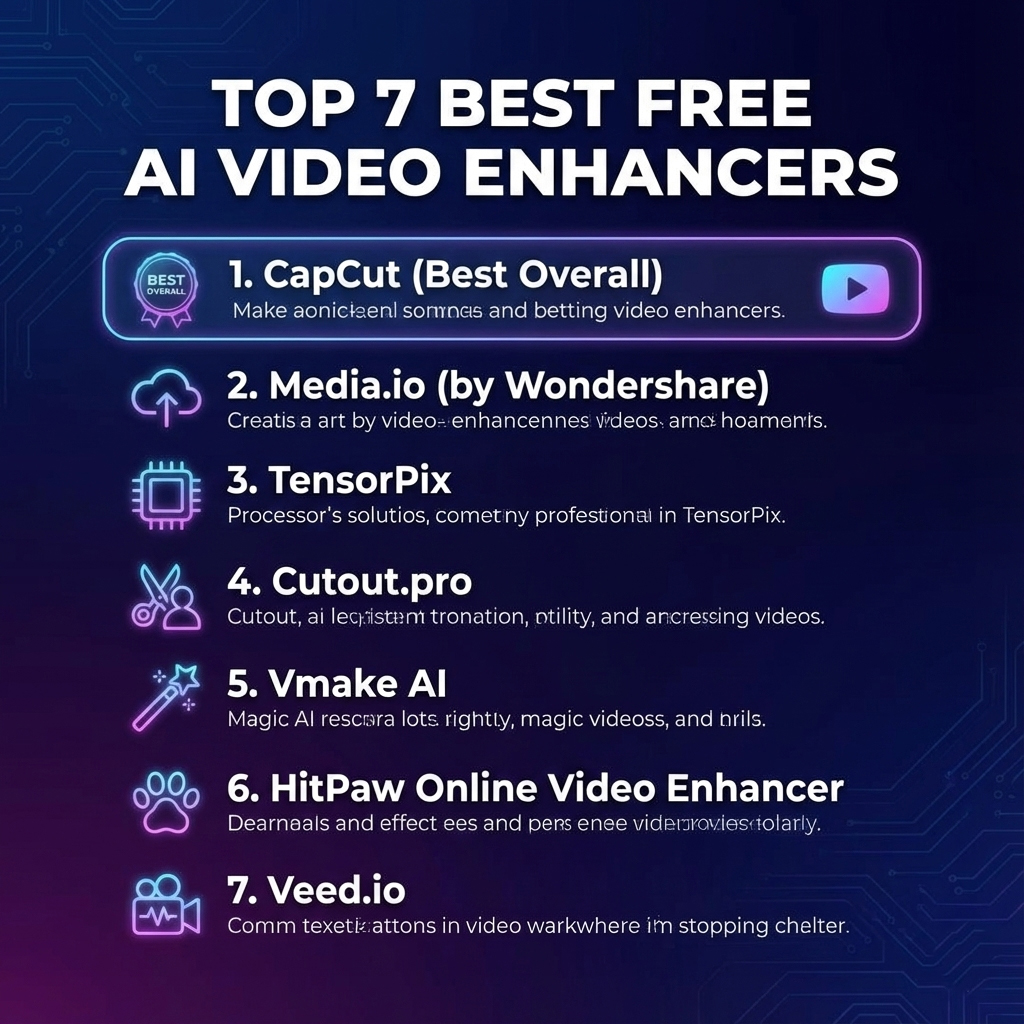
I didn’t just read the brochures for these tools; I threw my grittiest, grainiest low-light footage at them to see which ones actually work and which ones are just marketing hype. If you are looking for the best free video upscaler 2026 has to offer, you are in the right place. I’m going to break down the top 7 tools that will help you upscale 1080p to 4k online free, remove artifacts, and stabilize shaky cam without spending a dime.
Preparation: What You Need Before We Start
Before we dive into the tools, let’s manage expectations. While these AI video upscaler tools are powerful, they aren’t magic wands. “Garbage in, garbage out” still applies to a degree. Here is my recommended setup to ensure you don’t waste your time:
- Stable Internet Connection: Most of these are cloud-based. If you are uploading 500MB files on a spotty connection, you will time out.
- Source Files: Try to use the original raw file if possible. Re-compressing a file that has been compressed by WhatsApp five times usually yields weird AI hallucinations.
- Hardware Acceleration (Optional but recommended): Even for browser-based tools, having “Hardware Acceleration” turned on in your Chrome or Edge settings helps with the rendering preview.
1. CapCut (Best Overall Free AI Video Enhancer)
If you think CapCut is just for Gen Z TikTok dancers, you are missing out on one of the most robust engineering feats in the current market. In my experience, CapCut offers the most generous free tier for a video quality enhancer because they are subsidizing the cost to capture the market.
My Hands-On Experience
I use the desktop version of CapCut for quick edits when I don’t want to load up Premiere Pro. The “Image/Video Upscaler” is buried in the settings but works surprisingly well using aggressive noise reduction algorithms.
Step-by-Step Guide:
- Import your low-res video into the timeline.
- Click on the video clip and navigate to the “Video” tab in the right panel.
- [INSERT SCREENSHOT HERE: The CapCut desktop interface highlighting the ‘Video’ tab and ‘Basic’ settings]
- Check the box for “Image Noise Reduction” and select “Strong”.
- When exporting, choose “4K” resolution. CapCut’s engine handles the upscaling during the render process.
Pros: Completely free (currently), excellent stabilization, cross-platform sync. You can upgrade to the pro version to get more features (if you are a filmmaker or professional creator). Otherwise, I think the free version is sufficient.
Cons: Heavy compression on export if you don’t tweak the bitrate settings; privacy concerns as it is ByteDance owned.
2. Media.io by Wondershare

Wondershare has been in the game a long time. Media.io is their browser-based suite. As a 4k video enhancer AI, it is solid, but you need to be aware of the “Freemium” trap.
I tested this with a 480p clip. The upscaling to 2K was impressive, specifically regarding edge detection. Unlike older algorithms that just sharpened edges (creating halos), Media.io actually hallucinates realistic texture detail.
Expert Tip: Use a temporary email if you are just testing it out, as they are aggressive with marketing emails. Read more about how Super-resolution imaging works to understand what the AI is actually doing behind the scenes.
3. TensorPix (The Cloud Specialist)
This is a tool that actually feels like it was built for pros who are broke. TensorPix is cloud-native. Why does this matter? Because upscaling kills your CPU. By offloading this to TensorPix’s servers, you can continue working on other things.
Why I recommend it for “Rescue Missions”
I had a client send me footage that was slightly out of focus. CapCut couldn’t fix it—it just made the blur sharper. TensorPix, however, has a specific filter for “De-blurring” that uses more advanced neural networks to estimate the original focal point. It saved the project.

The Catch: You run on credits. The free credits are enough for a few short clips, but don’t expect to remaster a whole movie for free.
4. Cutout.pro
You probably know Cutout.pro for background removal, but their video quality enhancer is a sleeper hit. I found their interpolation (generating frames to make video smoother) to be top-tier.

If you are looking for how to improve video quality free specifically for animation or anime, this is the one. It handles flat colors and lines much better than photorealistic footage, where it sometimes creates a “plastic” skin look.
5. Vmake AI
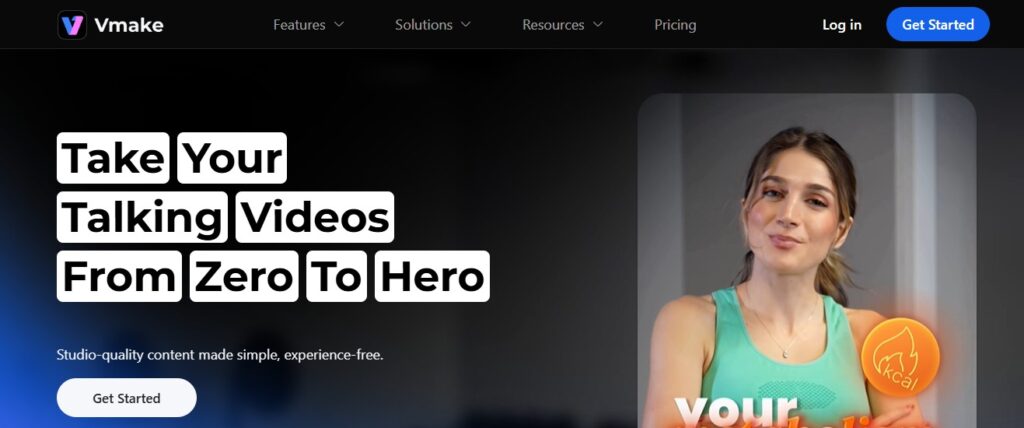
This is a newer entrant I discovered recently. Vmake focuses heavily on the e-commerce and social media vertical. If you are a dropshipper or content creator needing to upscale product videos ripped from AliExpress (we’ve all done it), this is your tool.
It automatically adjusts contrast and brightness alongside the upscaling, making the video “pop” on mobile screens. It’s less of a cinematic restorer and more of a “make it look good on Instagram” tool.
6. HitPaw Online Video Enhancer

HitPaw is fast. During my tests, it was the quickest to process a 30-second clip from 720p to 1080p. It uses a lighter-weight model than TensorPix, which means it might not recover as much detail, but it finishes the job before you can grab a cup of coffee.
Safety Warning: The web version is safe, but be careful downloading their desktop “installers” from third-party sites. Always stick to the official web interface for the free trial.
7. Veed.io (The Content Creator’s Swiss Knife)

Veed is not just an upscaler; it’s a full suite. Their “Magic Tools” are excellent for cleaning up visual noise. I use Veed when I need to repurpose a Zoom recording (which is usually terrible quality) for LinkedIn.
The upscaling is subtle. It doesn’t over-sharpen like some others. It focuses on clarity and text readability, which is crucial if your video contains presentations or subtitles.
Comparison Table: At a Glance
| Tool Name | Best For | Free Limit / Model | Expert Rating |
|---|---|---|---|
| CapCut | Overall & Mobile | Completely Free | 9.5/10 |
| TensorPix | Restoring Old/Blurry Footage | Free Credits on Signup | 9.0/10 |
| Media.io | 2K/4K Upscaling | Freemium (Watermark likely) | 8.5/10 |
| Veed.io | Talking Head/Zoom Clips | Free with Watermark | 8.8/10 |
Common Troubleshooting & “Gotchas”
Even with the best free video upscaler 2026 has provided, things go wrong. Here is how I fix common issues:
The “AI Plastic Face” Effect
The Problem: Faces look like wax figures. This happens when the “Denoise” parameter is set too high.
The Fix: Lower the noise reduction strength. A little bit of film grain is actually good—it tricks the human eye into seeing more detail than there actually is. Check out this guide on why film grain matters from Adobe.
Video Synchronization Issues
The Problem: Audio and video drift apart after upscaling.
The Fix: This happens because AI upscalers often change the frame rate (e.g., from variable to constant). Always demux (separate) your audio before upscaling the video, then stitch them back together in a simple editor like CapCut or Premiere.
Expert’s Pro Tip: The Bitrate Secret
Here is the one thing most tutorials won’t tell you: Resolution is vanity, Bitrate is sanity.
You can have a 4K video that looks terrible if the bitrate is low (e.g., 5 Mbps). Conversely, a 1080p video at 50 Mbps looks cinematic. When you export from these AI tools, always maximize the bitrate setting (or choose “High” quality). If the tool gives you a 4K file that is only 20MB in size, it is lying to you—it crushed the quality to save space.
Conclusion
We are living in a golden age of creative tools. Just five years ago, what CapCut and TensorPix are doing for free would have cost a production house thousands of dollars. If you are just starting, download CapCut immediately—it’s the safest and most versatile bet. If you have specific restoration needs (like old family 8mm tapes digitized), use your free credits on TensorPix.
Don’t let low quality hold your content back. Pick one of these tools, upscale that footage, and get your content out there. Have you tried a tool that isn’t on this list? Let me know in the comments below.
Frequently Asked Questions (FAQ)
Is there a completely free AI video enhancer?
Yes, currently CapCut offers the most comprehensive free features without watermarks for upscaling and stabilization on both mobile and desktop.
How do I upscale 1080p to 4K for free?
You can use tools like Media.io or CapCut. Import your 1080p footage, apply the “Upscale” or “Enhance” effect, and ensure your export settings are set to 4K resolution with a high bitrate.
What is the best AI video upscaler for old movies?
TensorPix is excellent for old movies because it uses cloud-based neural networks specifically trained to remove blur and film scratches, rather than just sharpening edges.
Are online video enhancers safe to use?
Generally, yes. However, be cautious with sensitive personal or corporate data. Cloud-based tools (like Veed or Media.io) upload your video to their servers for processing. If security is a top priority, use locally installed software.