
If you are sitting comfortably in your office chair thinking your job is safe because “AI can’t do the human stuff,” you are playing a dangerous game. In my 15 years working across SEO, content strategy, and digital transformation, I have never seen a shift this seismic. The divide isn’t between those who can code and those who can’t anymore. It is between those who can leverage No-code AI Automation and those who will be managed by them.
I’ve spent the last decade building complex systems. I used to think I needed to learn Python or JavaScript to build powerful tools. I was wrong. Today, I run an entire ecosystem of autonomous agents that handle reporting, content generation, and data analysis—and I rarely touch a code editor.
This guide is not a theoretical lecture. It is a practical, blood-and-sweat AI automation roadmap for beginners. I am going to show you exactly how to build your own “Starter Pack” using Google Sheets, OpenAI, and Make.com. We are going to build a real tool, right here, right now.
If you are looking to start AI automation agency services or simply want to secure your career future, mastering No-code AI Automation is your only viable path forward.

Ultimate No-code AI Automation Roadmap for Beginners
Why System Thinking Beats Coding Skills Every Time
Here is a controversial take: Learning to code might actually slow you down if your goal is pure business automation. Why? Because coders often get bogged down in syntax—missing semi-colons, library dependencies, and environment errors.
In the world of No-code AI Automation, the syntax is handled for you. The real skill—the one that pays the bills—is System Thinking.
System thinking is the ability to see the flow of data. It’s asking: “If a client emails me, what happens next? Where does that data go? Who needs to be notified? How do we format that data?”
When you master system thinking, you stop seeing tasks and start seeing workflows. You realize that workflow automation isn’t just about saving five minutes; it’s about removing the friction that kills creativity. The tools I list below are useless if you cannot visualize the architecture of the problem you are solving.
The “Starter Pack”: Your Weaponry
To follow this roadmap, forget about expensive enterprise software. We are going to use the “Holy Trinity” of the no-code world. This combination is powerful enough to run a Fortune 500 workflow but accessible enough for a beginner.
1. Google Sheets (The Database)
It’s not just a spreadsheet; it’s your database. It’s where your AI reads context from and writes results to. It is free, cloud-based, and integrates with everything.
2. OpenAI API (The Brain)
We aren’t using ChatGPT in the browser here. We are connecting to the “brain” directly via API. This allows us to pipe data in, process it with a prompt, and get a structured answer back.
3. Make.com (The Nervous System)
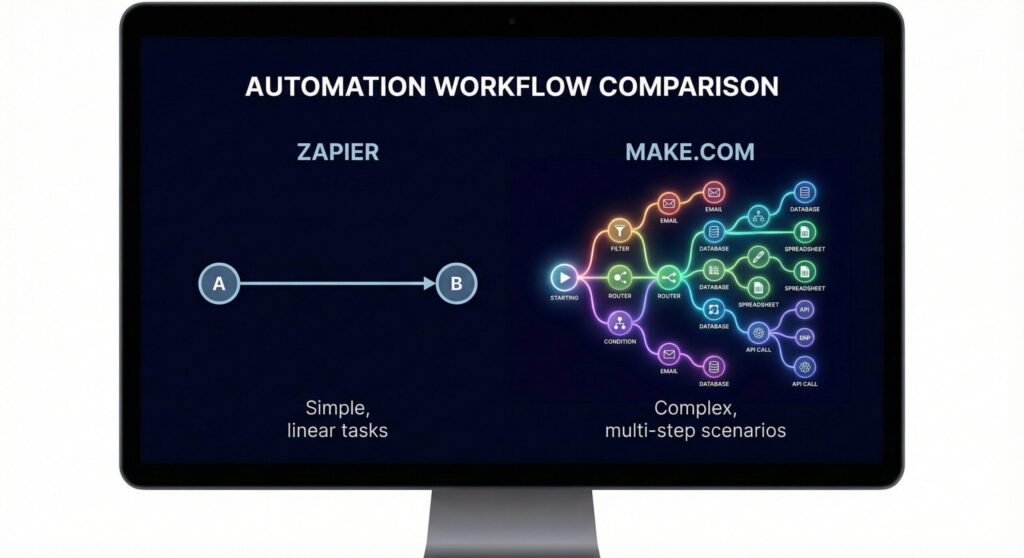
Make.com (The Nervous System)
While many people start with Zapier automation, I strongly recommend Make.com (formerly Integromat) for anyone serious about this path. Make allows for visual, non-linear workflows that Zapier struggles with. It allows you to visualize the logic, handle errors, and transform data in transit. It is, in my opinion, the king of AI automation tools.
Phase 1: Preparation (Before We Build)
Before we dive into the tutorial, you need to have your logistics ready. I’ve seen many beginners stall here because they didn’t expect the costs or setup requirements.
- OpenAI API Account: Go to the OpenAI platform. You will need to attach a credit card. Warning: This is not the same as your ChatGPT Plus subscription. API usage is paid per “token” (word fragment). Put a hard limit of $10/month on your usage settings immediately to avoid surprises.
- Make.com Account: The free tier is generous (1,000 operations/month), which is perfect for learning.
- Telegram App: We will use this to receive our automated reports. It has the easiest API for beginners to work with.
Step-by-Step Guide: Building Your First “News Summarizer” Agent
We are going to build a system that automatically scans for news on a specific topic (e.g., “Artificial Intelligence”), summarizes it using GPT-4, and sends a digest to your Telegram every morning. This is the “Hello World” of No-code AI Automation.
Step 1: Setting Up The Trigger (RSS Feed)
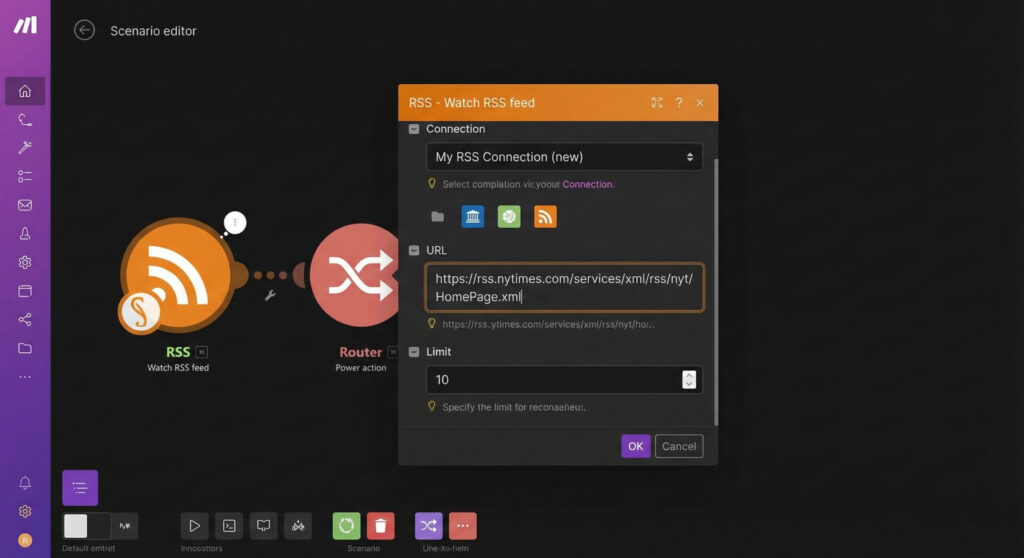
Setting Up The Trigger (RSS Feed)
Log into Make.com and create a new Scenario. Click the big purple plus button. We need a source of data. Search for “RSS” and choose “Watch RSS feed”.
You can use Google News RSS links. For example, search for “AI Technology” on Google News, copy the RSS link at the bottom (or use a generator), and paste it here.
Pro Tip: set the “Maximum number of returned items” to 3 to save on API costs during testing.
(Image Prompt: Screenshot of the Make.com interface, focusing on the RSS ‘Watch Feed’ module settings. The URL field contains a Google News RSS link.)
Step 2: The “Brain” Processing (OpenAI)
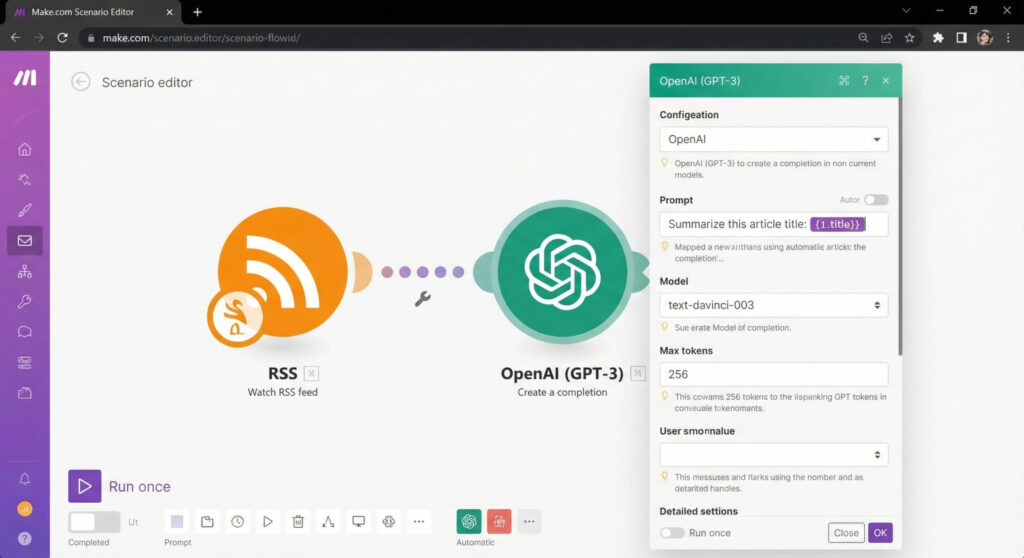
The “Brain” Processing (OpenAI)
Next, add a module connected to the RSS bubble. Search for “OpenAI” and select “Create a completion (Chat)”.
Connection: You will need to paste your API Key here (starts with `sk-`). NEVER share this key.
Model: Select `gpt-4o-mini` or `gpt-3.5-turbo` (cheaper and faster for summarization).
Messages:
- Role: System | Content: You are a helpful tech journalist. Summarize the following news article in 2 bullet points.
- Role: User | Content: Title: [Map Title from RSS]
Description: [Map Description from RSS]
Step 3: The Output (Telegram Bot)
Now we need to send this data somewhere. Search for “Telegram Bot”.
To get a bot token, message @BotFather on Telegram. Create a new bot, and he will give you a token. Paste that into Make.com.
Use the “Send a Text Message” action. In the text field, map the output from the OpenAI module (usually found under `Choices[] > Message > Content`).
Run Once: Click the “Run Once” button at the bottom left. If you see green checks, congratulations. You just built a No-code AI Automation agent.
Common Pitfalls & Troubleshooting (Experience from the Trenches)
I cannot tell you how many times I have stared at a red error bubble in despair. Here is how to fix the most common issues when you are learning how to build AI agents without coding:
1. JSON Parse Error (The Invisible Killer)
Sometimes OpenAI returns text that isn’t quite what the next module expects. If you are trying to output strict data (like JSON) from OpenAI, always use the “JSON Mode” in the OpenAI module settings, or strictly instruct the prompt: “Output ONLY raw JSON, no markdown.”
2. The 401 Unauthorized Error
This almost always means your API key is wrong, or more likely, your credit card on OpenAI has expired or hit its limit. Check your billing settings first.
3. The Infinite Loop
Be careful when connecting triggers that watch a Google Sheet and actions that update the same row. You can accidentally create a loop where the automation updates the row, which triggers the automation again, which updates the row… and drains your bank account in minutes. Always use filters.
Why No-code AI Automation is Your Future
We are moving into an era where “doing the work” is less valuable than “designing the machine that does the work.” By following this AI automation roadmap for beginners, you are stepping out of the operator role and into the architect role.
The best no-code AI tools for business are not the ones with the flashiest marketing, but the ones that allow you to customize logic. That is why the combination of Sheets, Make, and OpenAI is so potent. It scales.
🚀 Expert Pro Tips
- Parameter Tuning: In the OpenAI module, set `Temperature` to 0.2 for factual tasks (data extraction) and 0.7 for creative tasks (writing blogs).
- Error Handling: In Make.com, right-click a module to add an “Error Handler” (the ambulance icon). If OpenAI fails, you can tell the system to send you an alert email instead of crashing the whole workflow.
- Documentation: Always add notes to your Make scenarios. You will forget how your own logic works in two weeks. Trust me.
Conclusion
No-code AI Automation is not a fad; it is the industrial revolution of knowledge work. You do not need a computer science degree. You need curiosity, a credit card for API usage, and the patience to debug logic flows.
Start with the news summarizer I showed you above. Once that works, try connecting your email. Then your CRM. Before you know it, you will have built a personal workforce that works 24/7. Don’t just read this article—open Make.com right now and build your first scenario.
Your future career depends on your ability to leverage these tools. Don’t let the machines replace you; become their manager.
Frequently Asked Questions
Is No-code AI Automation suitable for complete beginners?
Absolutely. No-code platforms like Make.com and Zapier are designed specifically for people without technical backgrounds. If you can draw a flowchart and use Excel, you can learn automation.
How much does it cost to start with AI automation?
You can start for free. Make.com has a free tier, and Google Sheets is free. However, for the AI part (OpenAI API), you will need a small budget. $5 to $10 is usually enough for a beginner to experiment for a whole month.
Can I build a business using No-code AI tools?
Yes, many professionals start AI automation agencies using these exact tools. Businesses are willing to pay significantly for custom workflows that save them time and manual labor.
What is the difference between Zapier and Make.com?
Zapier is generally easier for simple, linear tasks (A triggers B). Make.com (formerly Integromat) is more powerful for complex logic, branching paths, and data transformation, making it better for advanced AI automation.