
Let’s be honest. If you are working in SEO, content creation, or automation like I have for the last 15 years, your monthly credit card bill for SaaS subscriptions is probably terrifying. We pay for text generation, voice synthesis, image rendering, and research agents.
But recently, the landscape has shifted. While everyone was distracted by other platforms, Google quietly released a suite of free Google AI tools that are frankly terrifyingly good. I’m not talking about basic chatbots. I’m talking about production-ready tools like NotebookLM and the cutting-edge Nano Banana (Gemini 2.5 Flash Image).
I have spent hundreds of hours testing these models—pushing API limits, tweaking temperature settings, and dealing with hallucinations—so you don’t have to. In this guide, I will walk you through the best free Google AI tools 2026 has to offer, showing you exactly how to build a fully automated workflow without spending a dime.
Why You Should Switch to Free Google AI Tools Now
It’s not just about the price tag (though “free” is my favorite price). It’s about the ecosystem. When you use free Google AI tools for productivity, you are tapping into a multimodal architecture that connects your Drive, Docs, and real-time search data.
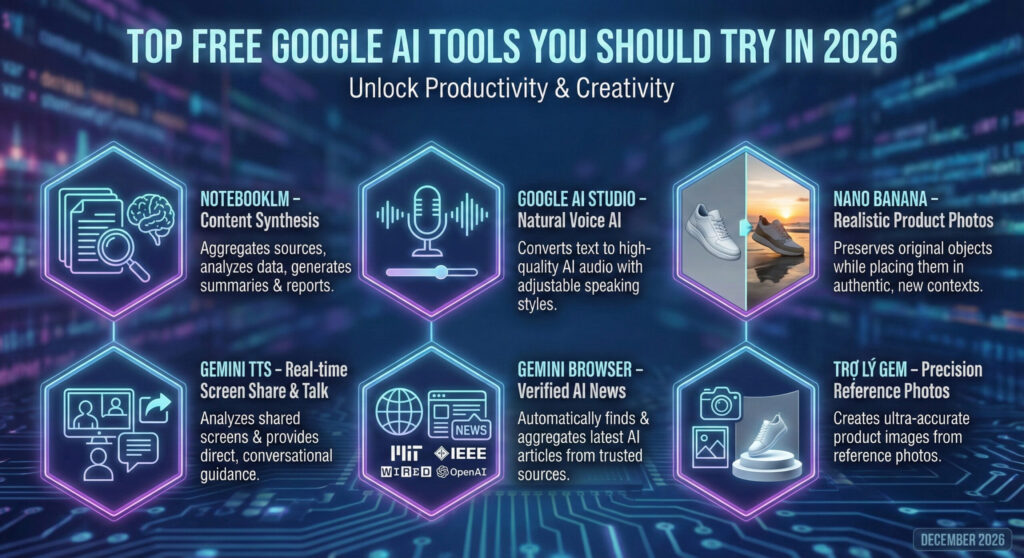
Unlike standalone tools where you have to copy-paste context endlessly, these free Google AI tools generally understand your workspace better. Below, I break down the six Google AI tools that are currently saving me about $200/month.
Preparation: The Tech Stack for Google AI Tools
Before we dive into the “how-to” of these free Google AI tools, let’s get your environment set up. You don’t need a supercomputer, but you do need access.
- A Verified Google Account: Essential for accessing all Google AI free services.
- Google AI Studio Access: This is where developers play. If you are in a restricted region, you might need a compliant VPN to access these Google AI tools, though Google has opened this up globally recently.
- High-Res Reference Images: For the image tools, “Garbage in, Garbage out” applies. Have clear PNGs of your products ready.
Expert Note: Ensure 2-Factor Authentication is on. When you start generating API keys in AI Studio to use these free Google AI tools, you are creating gateways to your quota. Secure them.
1. NotebookLM: The Ultimate Research Engine Among Free Google AI Tools
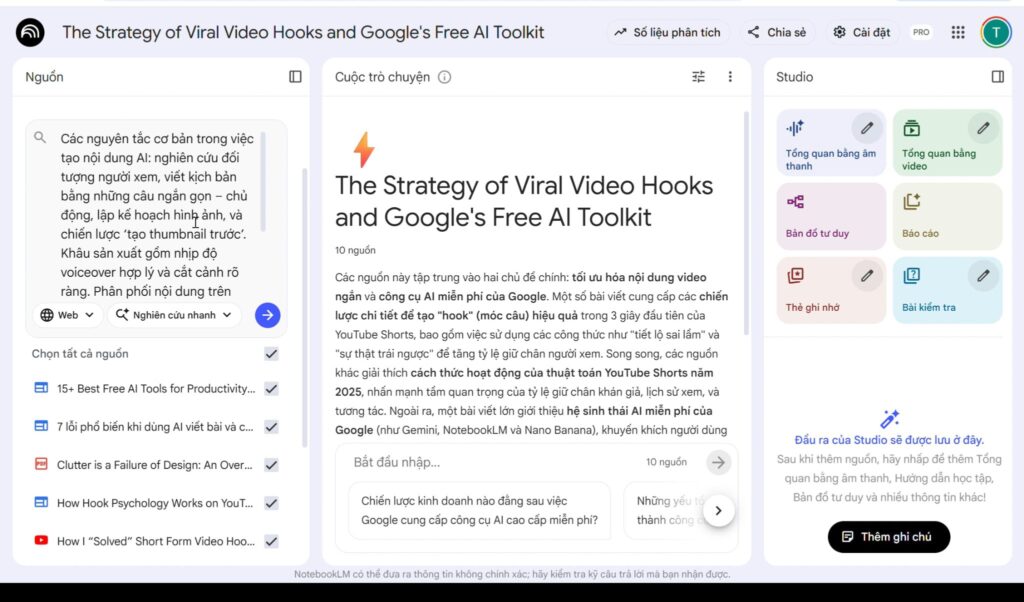
If you are a content creator, NotebookLM is arguably the most powerful entry in the list of free Google AI tools available. It uses RAG (Retrieval-Augmented Generation) to “ground” the AI in your specific documents. I use this to process 50+ page technical PDF reports.
The Workflow
It doesn’t just “summarize.” It connects the dots between disparate sources better than most paid competitors, making it a standout among Google AI tools.
Step 1: Create a Notebook Go to NotebookLM and create a new project. Name it specifically (e.g., “SEO Trend Analysis Q1”).
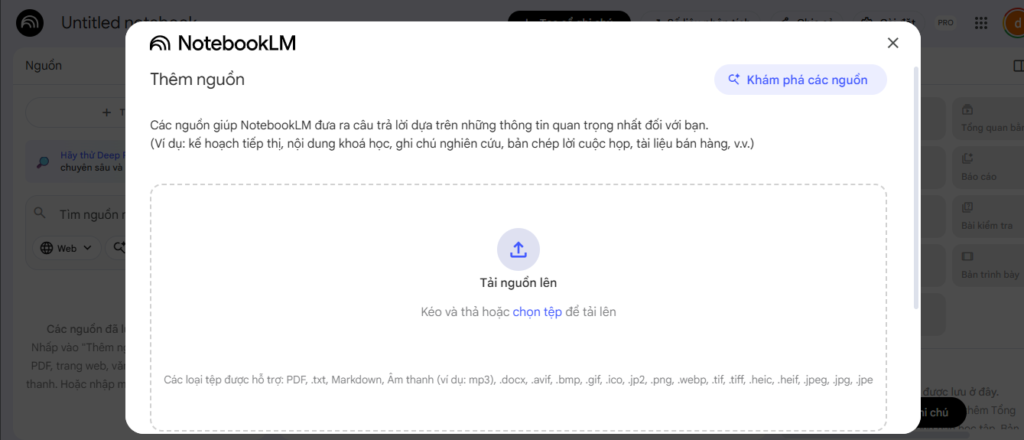
Step 2: Upload Sources Upload your raw data. I usually upload about 10-15 PDF files.
Step 3: Generate the “Audio Overview” This is the killer feature. Click “Generate” on the Audio Overview. It turns your dry documents into an engaging “podcast” style discussion between two AI hosts.
Pro Tip: Don’t just listen. Download the audio transcript. I use the transcript of the AI podcast as the outline for my blog posts because the AI naturally simplifies complex topics, proving that free Google AI tools can rival expensive human researchers.
2. Google AI Studio: Prototyping Natural AI Voice
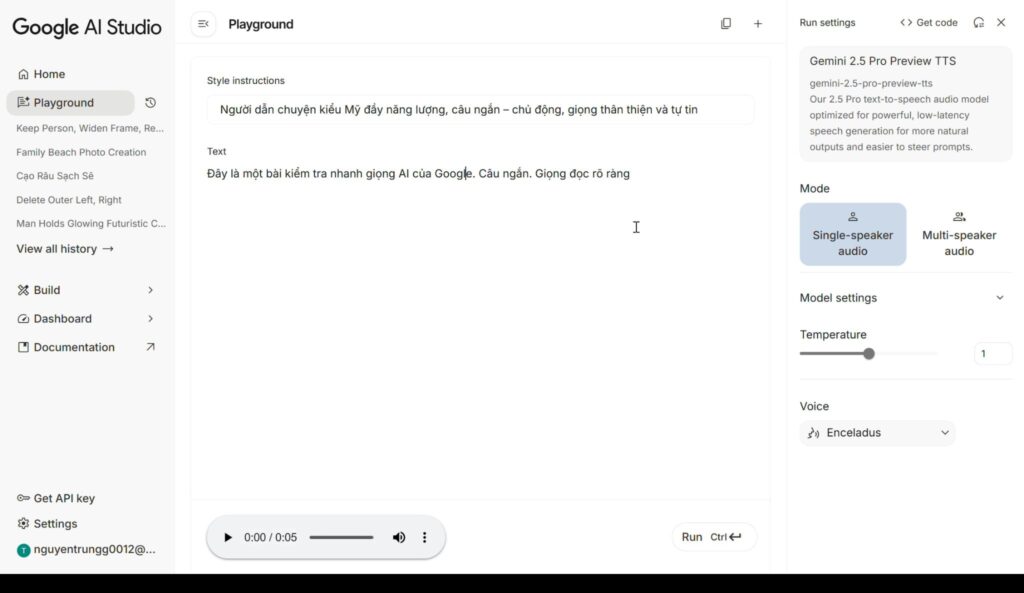
While most people use the consumer Gemini app, Google AI Studio is where the real power lies for creators looking for advanced free Google AI tools. Specifically, for Google AI tools for content creation, the TTS (Text-to-Speech) control here is unmatched.
How to Create Human-Like Audio
Step 1: Select the Model Choose the latest Gemini model (e.g., Gemini 1.5 Pro or Flash).
Step 2: System Instructions This is where novices fail when using Google AI tools. Do not just paste your text. In the “System Instructions” box, define the persona. Example: “You are a weary but optimistic senior engineer. Speak with slight pauses and a deep, resonant tone.”
Step 3: Adjust Temperature Set your ‘Temperature’ to 0.7 for creative delivery or 0.2 for factual, crisp reporting. Hit “Run” and export the audio output.
Pro Tip: If the AI is speaking too fast, insert “…” or [pause] directly into the prompt text in AI Studio to force pacing changes. This level of control is rarely found in other free Google AI tools.
3. Nano Banana (Gemini 2.5 Flash Image): The E-Commerce Game Changer

This is the tool creating the most buzz in the underground developer communities. Nano Banana, leveraging the Gemini 2.5 Flash Image architecture, solves the biggest problem in free Google AI tools for images: Consistency.
If you are selling a product, you can’t have the logo changing shape in every photo. Nano Banana allows for “Subject Locking.”
Step-by-Step: Keeping the Object Real
Step 1: Upload Reference Image Upload your product shot (e.g., a sneaker) as the primary token/reference.
Step 2: Define the Mask (The “Banana” Method) Use the selection tool to highlight exactly which pixels must remain unchanged (the shoe) and which pixels are the “context” (the background).
Step 3: Prompt the Environment Prompt: “Professional product photography, the sneaker is placed on a wet concrete street, neon city lights reflection, 8k resolution, cinematic lighting.”
Step 4: Generate The AI keeps your sneaker 100% pixel-perfect but swaps the white background for a Cyberpunk street. This capability makes it one of the most valuable free Google AI tools for e-commerce.
Pro Tip: Use the “Negative Prompt” feature to banish unwanted elements like “blurry text” or “extra laces.” This is crucial for commercial free Gemini AI tools.
4. Gemini TTS: Real-Time Screen Sharing & Mentorship
We aren’t just talking about reading text anymore. The new multimodal capabilities allow Gemini TTS to “see” your screen and talk you through tasks. This feature solidifies Gemini’s position as a leader in free Google AI tools for productivity.
How to Use It for Live Assistance
Step 1: Open Gemini on Mobile/Desktop Ensure you have the version that supports Multimodal Live interaction.
Step 2: Share Screen Click the “Share Screen” icon within the chat interface.
Step 3: Verbal Prompting Don’t type. Speak: “Hey, look at this Python script. Why is line 45 throwing a syntax error?”
Step 4: Receive Guidance The AI analyzes the visual pixels of your code editor and talks you through the fix in real-time.
Pro Tip: This works for design too. Show Gemini a landing page layout and ask, “Where is the user’s eye drawn first?” It simulates eye-tracking studies surprisingly well, a feature usually reserved for premium software, not free Google AI tools.
5. Gemini Browser: The End of SEO Hallucinations
Standard LLMs hallucinate (make things up). The Gemini Browser capability (often integrated as “Grounding with Google Search”) is your safeguard. It is essential for writing accurate content about free Google AI tools.
Automating Market Research
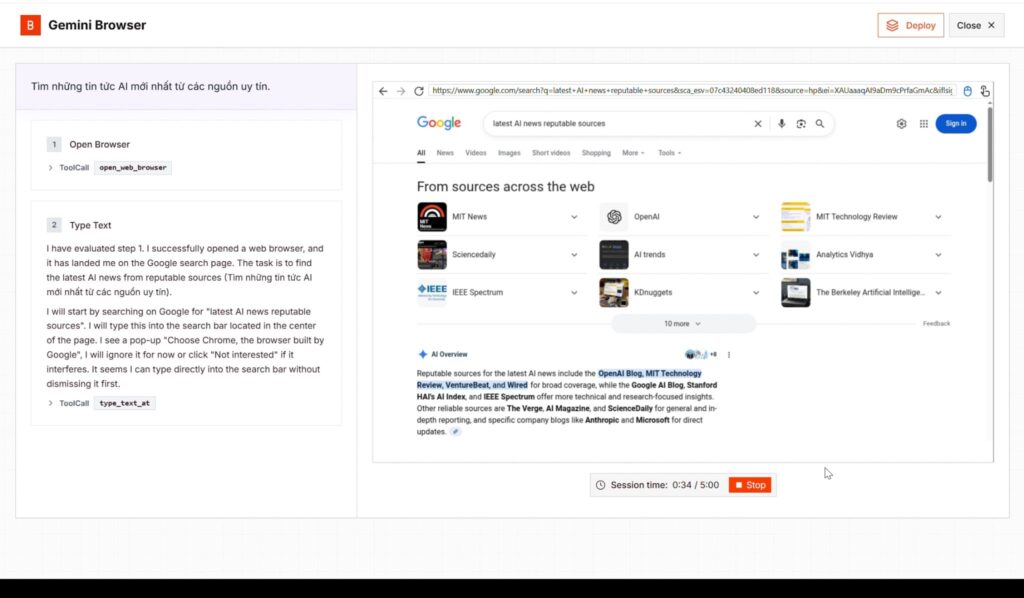
Step 1: Activate Search Grounding Ensure the “Google Search” toggle is ON in your Gemini interface.
Step 2: Use Precise Prompts Prompt: “Search for the latest IEEE papers released in December 2025 regarding Transformer architecture efficiency. Summarize the abstract of the top 3 cited papers.”
Step 3: Verify Citations Gemini Browser will provide little “chip” footnotes. Click them to open the actual MIT or Wired article. This reliability makes it one of the most trusted free Google AI tools for productivity.
Pro Tip: Ask the browser to “Compare X vs Y in a table format based on reviews from [Trusted Source].” It filters out SEO spam sites and looks for domain authority.
6. Gem Assistant: Advanced Product Contextualization
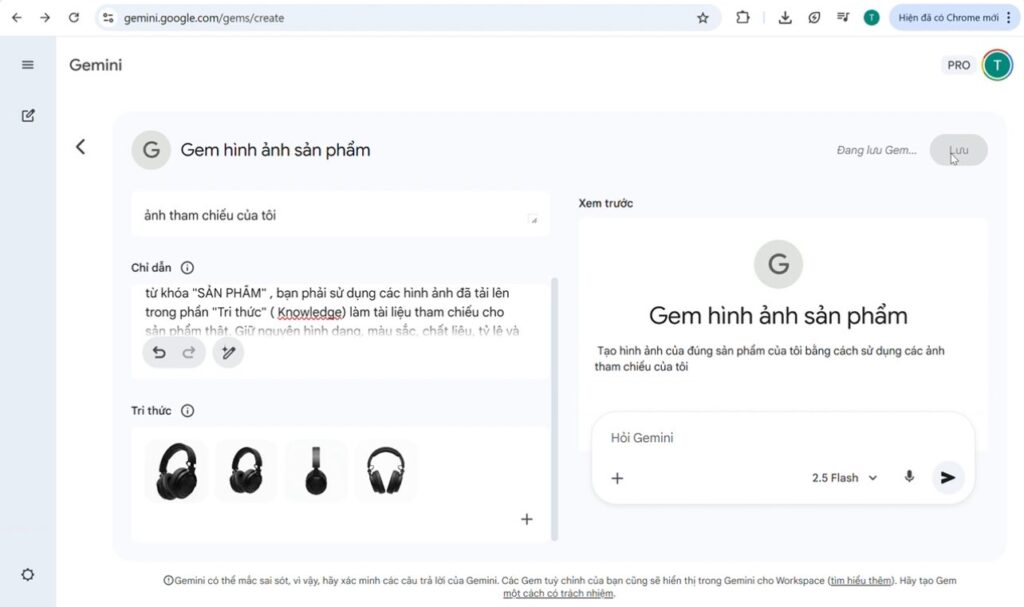
While Nano Banana handles the object, Gem Assistant handles the vibe and design fidelity. This is another powerful addition to the suite of free Google AI tools.
Creating the Perfect Lifestyle Shot
Step 1: Upload the “Style Reference” Upload an image that conveys the mood (e.g., a warm, cozy cabin).
Step 2: Upload the “Structure Reference” Upload your product (e.g., a coffee mug).
Step 3: Set Weights This is technical. You need to tell the Gem Assistant what matters more. Setting: Style Weight: 60% | Structure Weight: 100%.
[INSERT SCREENSHOT OF SLIDER SETTINGS FOR WEIGHTS]
Step 4: Generate The result is your exact coffee mug, sitting on a wooden table in that exact cabin, with the lighting matching perfectly. Mastering this free Google AI tool can save you thousands on photoshoots.
Pro Tip: If the lighting looks fake, add the keyword “Global Illumination” or “Ray Tracing” to your prompt. It forces the model to calculate light paths more accurately.
Troubleshooting: Common Errors with Free Google AI Tools
Even the best free Google AI tools 2026 has to offer will break. Here is my troubleshooting log from the last few months.
1. “Model Overloaded” or “High Traffic”
- The Issue: You click generate, and it hangs.
- The Fix: Do not refresh. If you are using free Google AI tools via AI Studio, check your API quota. If you are on the free tier, you have a Rate Limit (RPM – Requests Per Minute). Wait 60 seconds. Switching VPN servers to a less busy region (like US East) sometimes helps.
2. The “Plastic Skin” Effect in Photos
- The Issue: Humans look like wax figures in Nano Banana or Gem Assistant.
- The Fix: You are over-prompting. Remove words like “perfect,” “smooth,” or “flawless.” Instead, add prompts like “film grain,” “skin texture,” “slight imperfections,” or “shot on 35mm.”
3. NotebookLM Missing Citations
- The Issue: The answer sounds good but doesn’t link to your source PDF.
- The Fix: Your source document might be unreadable (scanned images instead of OCR text). Use a free OCR tool to convert your PDF to selectable text before uploading to NotebookLM. This ensures one of the most useful free Google AI tools can actually read your data.
4. JSON/Code Formatting Errors
- The Issue: When asking Gemini to write code (like Schema markup), it sometimes forgets a closing bracket
}. - The Fix: Explicitly add this to your prompt: “Strictly validate JSON syntax. Do not output until you have verified all closing brackets.” (I learned this the hard way!).
Conclusion: The Future is Automated with Free Google AI Tools
The era of paying $20 for a simple text generator is over. The suite of free Google AI tools—from NotebookLM for synthesis to Nano Banana for imaging—offers a professional-grade stack for zero cost.
As we move toward 2026, the creators who win won’t be the ones with the biggest budgets; they will be the ones who master these Google AI tools.
My final advice: Don’t try to learn all six at once. Start with NotebookLM. Upload your messy project notes and let it organize your life. Once you see the power of grounded AI, you will understand why free Google AI tools are the future of digital work.
Have you tested the new Gemini 2.5 Flash capabilities yet? Let me know in the comments below which of these free Google AI tools you are integrating first!