I still remember the sinking feeling I had when I pulled an old shoebox out of my grandmother’s attic. The humidity in the basement had done its worst. Her wedding photo—the only one we had—was faded, cracked, and covered in what looked like water spots. Five years ago, restoring this would have cost me hundreds of dollars at a professional studio. But today, the landscape has completely changed.
Welcome to 2026. After spending 15 years in the trenches of automation and SEO, and arguably way too many late nights testing Generative Adversarial Networks (GANs), I can tell you that we are living in the golden age of digital restoration. You don’t need Photoshop skills anymore. You just need the right free ai photo restoration tool and a decent internet connection.
However, not all AI is created equal. I have tested dozens of “free” tools that ended up putting a watermark right across my grandfather’s face or turning my aunt into a plastic-looking mannequin. It’s frustrating.
In this guide, I’m cutting through the marketing noise. I will show you exactly how to restore old photos, fix blurry pictures, and breathe new life into your memories using the best tools available right now. This isn’t theory; this is my battle-tested list.
Why Free AI Photo Restoration Has Evolved in 2026
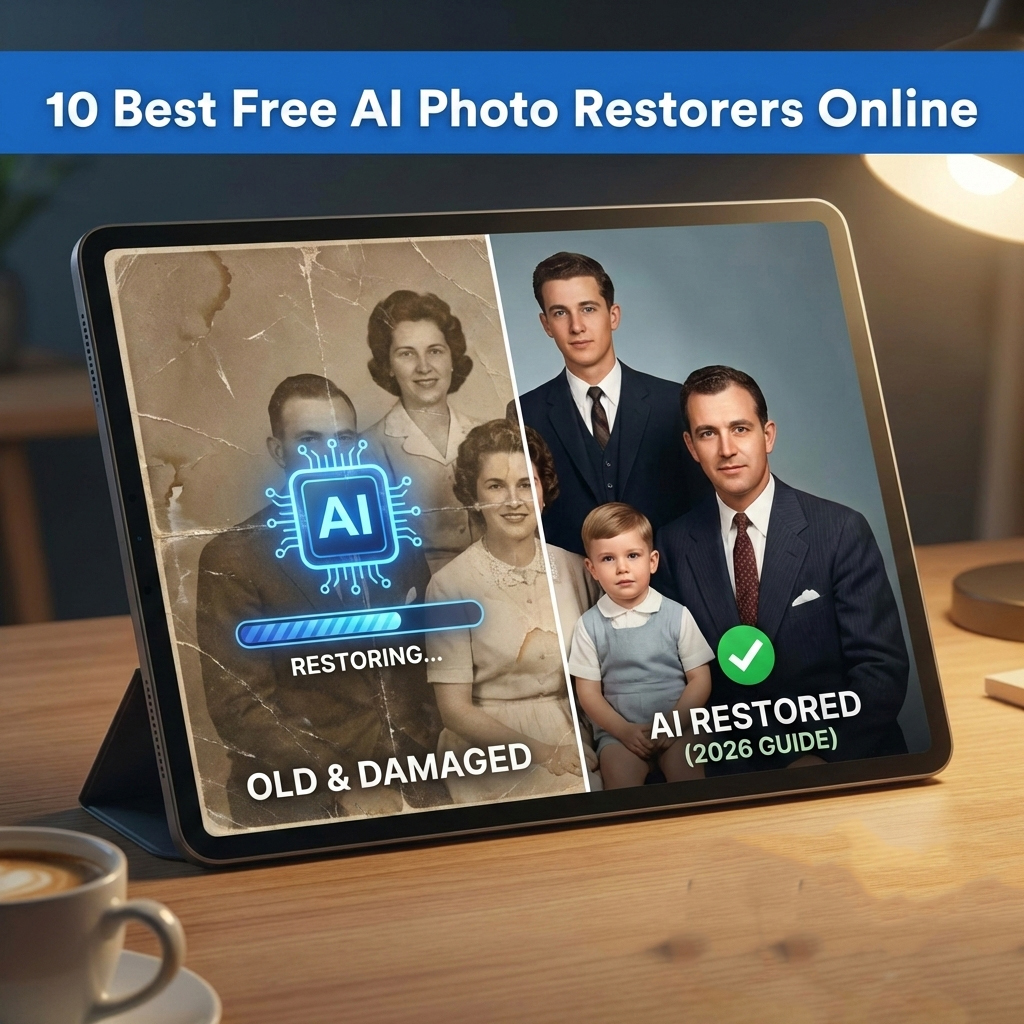
If you tried these tools back in 2023, you probably remember the “alien eyes” glitch. Early AI struggled with human features. But the free ai photo restoration algorithms we use today leverage advanced diffusion models. They don’t just “guess” the missing pixels; they understand the context of the image. They know what a human ear looks like in shadow. They know the texture of denim versus silk.
Let’s dive into the tools that actually work.
1. GFP-GAN (via Replicate or HuggingFace) – The Specialist’s Choice
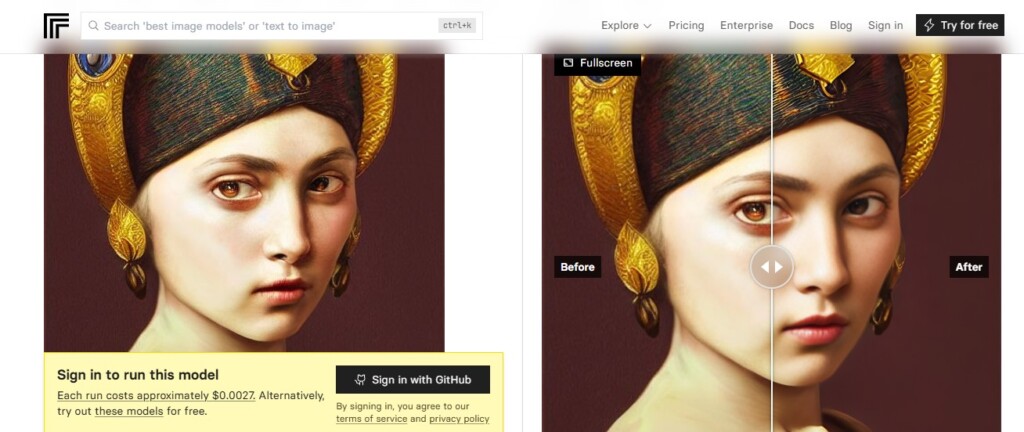
I’m starting with the heavy hitter. GFP-GAN isn’t a flashy commercial app; it’s an open-source model that many paid apps are actually built on top of. In my experience, if you want pure restoration power without the fluff, this is it.
My Experience
I use the demo versions hosted on Replicate or HuggingFace. The interface is bare-bones—it looks like a developer console—but the results are unmatched for facial details. When I uploaded a blurry photo of my graduating class from 2005, it didn’t just sharpen the image; it reconstructed the faces with frightening accuracy.
Pros:
- Completely free (open source).
- Best-in-class facial reconstruction.
- No annoying “credit” systems if you use the public demos.
Cons:
- Not user-friendly; looks technical.
- Can sometimes be slow if the public GPU queue is full.
2. RestorePhotos.io – Speed and Simplicity
If GFP-GAN feels too technical for you, RestorePhotos.io is the answer. I often recommend this to my clients who just want to fix blurry pictures quickly without tweaking parameters.
My Experience
It’s fast. Ridiculously fast. I dragged a low-resolution JPEG into the browser, and within 10 seconds, I had a sharper version. It uses a specific model optimized for faces. However, I noticed it struggles a bit with background details—it focuses heavily on the people.
Pros:
- Zero learning curve.
- Instant results.
- Great for social media profile pics.
Cons:
- Limited customization.
- Aggressive smoothing can sometimes look a bit “painted.”
3. Fotor – The All-in-One Photo Repair Tool
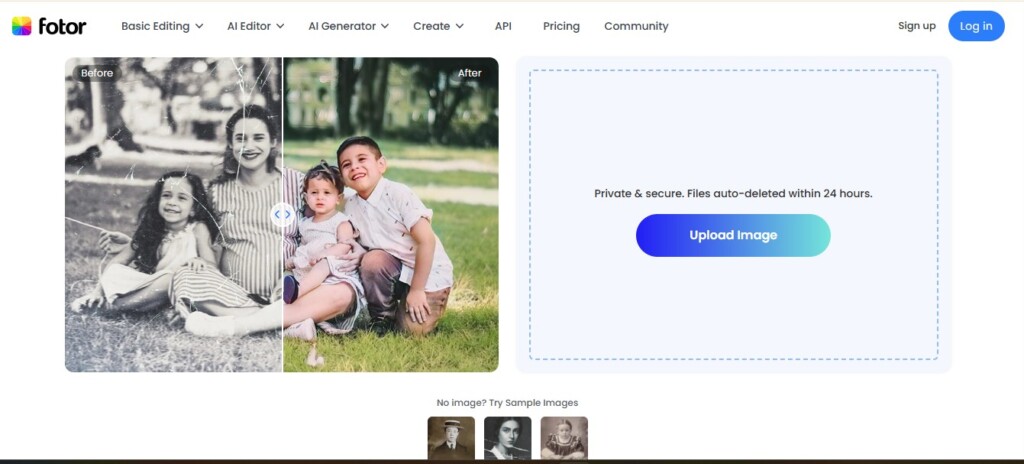
Fotor has been around for ages, but their 2026 AI update is a beast. It’s not just a photo repair tool; it’s a full editor. I use Fotor when the photo needs more than just restoration—like cropping, lighting adjustments, or text overlays.
My Experience
The “One-Tap Enhance” feature is their bread and butter. I uploaded a scanned photo that had scratch marks. Fotor’s AI detected the scratches and filled them in automatically. It wasn’t perfect—I had to use the manual clone stamp tool for one deep scratch—but it did 90% of the work for me.
4. VanceAI (Trial Mode) – Precision Detail
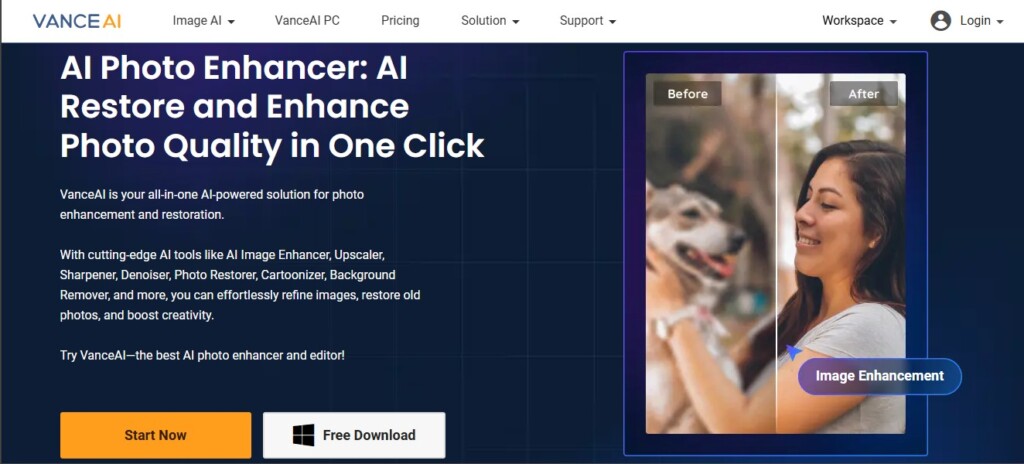
VanceAI is arguably the most powerful commercial engine on this list. While it is a paid tool, their “free trial” system is generous enough for one-off projects. I include it here because the quality is often superior to completely free open-source alternatives.
My Experience
I tested their “Old Photo Restorer” mode. The texture recovery is insane. Unlike other tools that just blur the noise, VanceAI actually tries to recreate skin texture. If you are looking for the best free AI photo restoration online quality-wise, grab the free credits here.
5. PicWish – The Cleanest UI
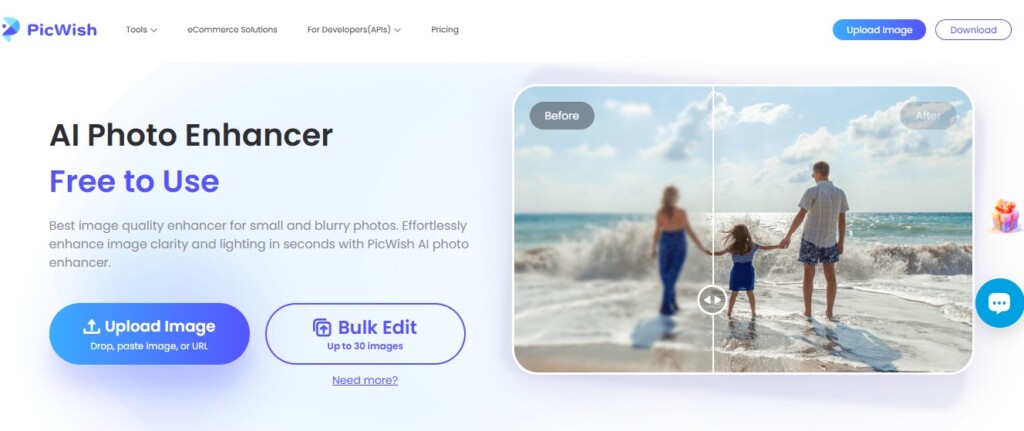
PicWish is a favorite of mine for product photography, but their restoration tool is a hidden gem. It’s incredibly clean—no ads popping up every two seconds.
My Experience
I used PicWish to restore vintage photos with AI tools for a client’s anniversary video. The color correction was surprisingly natural. It didn’t over-saturate the grass or sky like some other bots do. It keeps the “vintage” feel while removing the damage.
6. Hotpot.ai – Best for Colorization
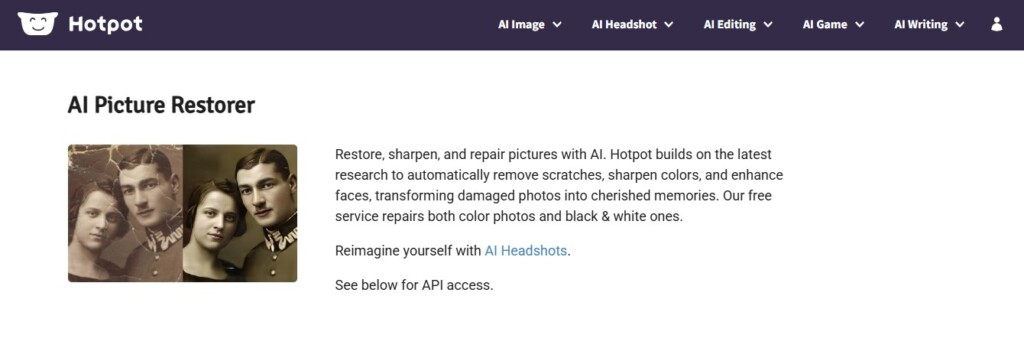
Restoration isn’t just about fixing scratches; it’s often about color. Hotpot.ai excels at taking black and white photos and guessing the colors correctly. I’ve found its historical accuracy to be hit-or-miss, but when it hits, it’s magical.
(Image Prompt: A black and white photo of a 1950s car being processed into a color photo with red paint and blue sky.)
7. Media.io – The Web-Based Powerhouse
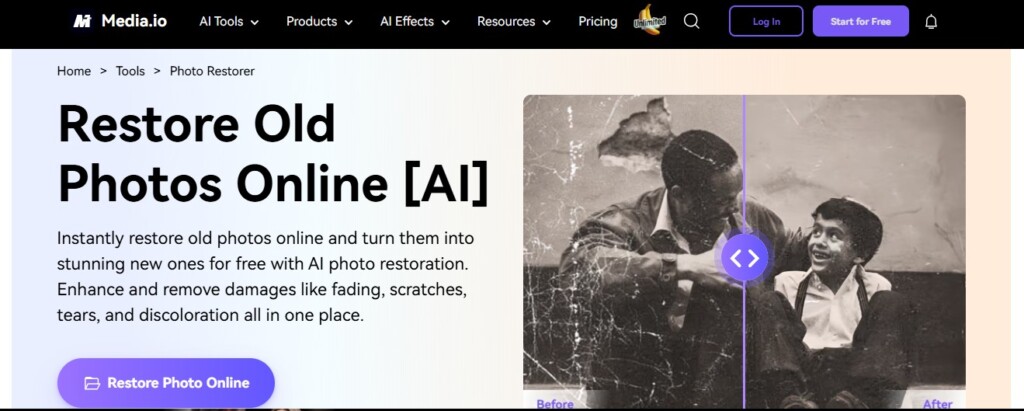
Owned by Wondershare, Media.io brings desktop-level software power to the browser. I like it because it supports batch processing (repairing multiple photos at once), which is rare for a free tool.
8. IMGKit – The Utility Belt
IMGKit is straightforward. It separates “Inpainting” (removing objects/scratches) from “Restoration” (fixing faces). This separation is actually a good thing because it gives you more control.
9. MyHeritage (Deep Nostalgia) – For Moving Memories
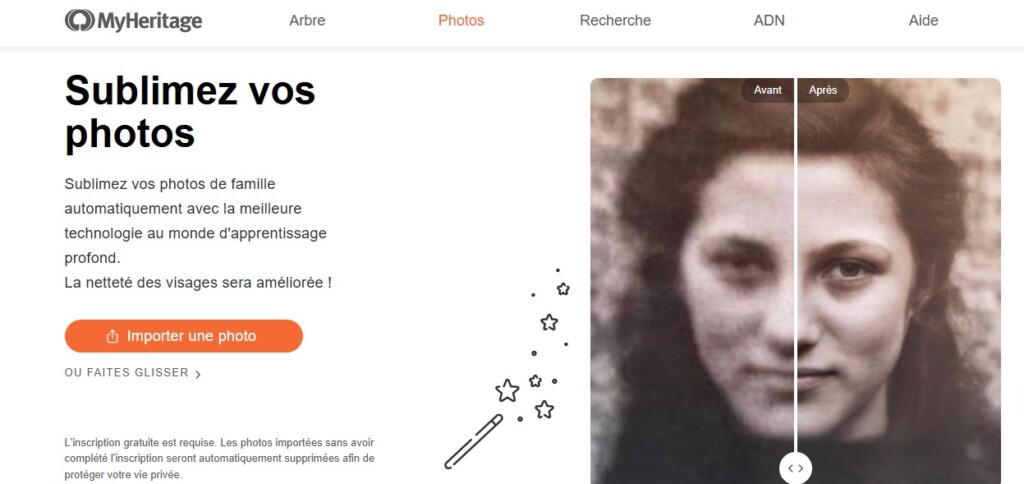
You’ve probably seen the “Harry Potter effect” where old photos move. MyHeritage is the king of this. While primarily a genealogy site, their enhancement tool is top-tier because they have millions of historical photos to train their AI on.
Note: You usually need to sign up for an account to see the results.
10. Upscayl (Cloud/Web Version)
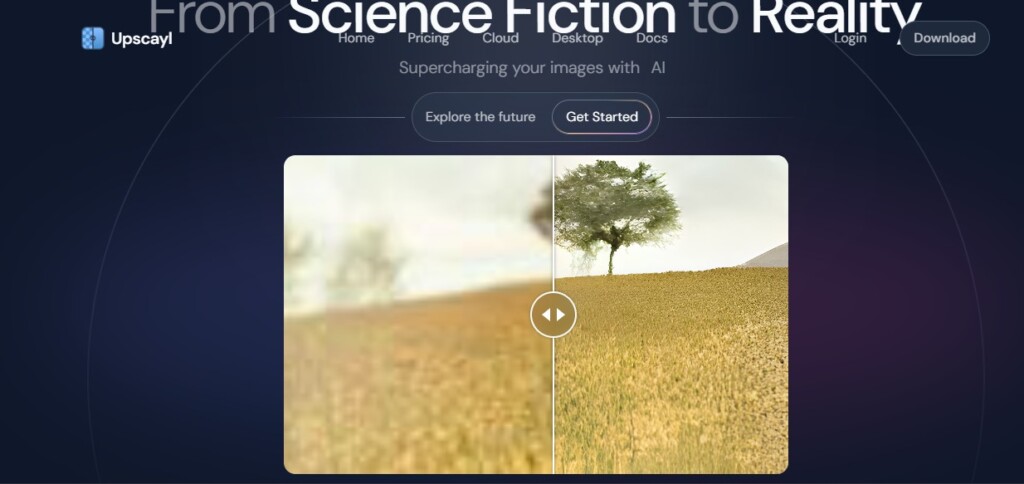
Originally a desktop app, Upscayl has been integrating cloud features. It is the best pure AI image upscaler. If your photo isn’t damaged but just tiny (like an old flip-phone photo), use this. It doesn’t invent details; it scales up what is there faithfully.
Step-by-Step: How to Fix Damaged Photos for Free Like a Pro
Having the tool is only half the battle. Here is my personal workflow to ensure you get the best free ai photo restoration results. Follow this precisely.
Step 1: The High-Quality Scan
Garbage in, garbage out. Do not just take a photo of the old photo with your phone (unless you have a scanning app like Google PhotoScan). If possible, use a flatbed scanner. Scan at 600 DPI minimum.
Step 2: Pre-Process (The Secret Step)
Before uploading to AI, crop the rough edges. If the photo has a massive tear, try to crudely tape it digitally or use a simple clone stamp to bridge the gap. AI works better when the “structure” of the face is intact.
Step 3: AI Processing
Upload your image to one of the tools above (e.g., GFP-GAN). Let it run.
Step 4: Post-Processing Polish
The AI might make the eyes look perfect but leave the neck blurry. Download the result and open it in a simple editor. Add a tiny bit of “Noise” or “Grain”. Why? Because AI photos look too smooth. Adding grain makes it look like a real photograph again.
Troubleshooting Common AI Errors
I’ve seen it all. Here is how to fix the most annoying issues when you enhance blurry images online free.
- The “Plastic Face” Effect: This happens when the restoration strength is too high. Solution: Use a tool that allows you to adjust the “fidelity” or “mix” slider. Blend the original photo with the AI photo at 50% opacity.
- Distorted Text: AI hates text. If your photo has a sign or a date written on it, the AI will likely turn it into alien hieroglyphics. Solution: Mask out the text before uploading, or paste the original text back over the AI result.
- Color Bleeding: Sometimes the colorization spreads red from a dress onto the skin. Solution: Use Hotpot.ai or Palette.fm specifically for the colorization step, as they have better boundary detection.
Conclusion
We have come a long way. In 2026, free ai photo restoration is no longer a gimmick—it’s a powerful reality available to anyone with a browser. You don’t need to pay expensive subscription fees to save your family history.
If you are just starting, I highly recommend trying GFP-GAN for the best facial detail or RestorePhotos.io for quick fixes. Remember, these tools are aids, not magicians. The best results come from a combination of a good scan, the right AI tool, and a little bit of human touch in the final edit.
Don’t let those memories fade away in a shoebox. Pick a tool, upload a photo, and see the magic for yourself today.
Frequently Asked Questions
Is there a completely free AI photo restoration tool?
Yes, open-source tools like GFP-GAN (accessible via Hugging Face or Replicate) are completely free. Other tools like RestorePhotos.io offer free services without heavy restrictions, though many commercial tools operate on a “freemium” model with daily limits.
How can I increase the resolution of an old photo?
You need an AI image upscaler. Tools like Upscayl or the upscaling features within Fotor utilize deep learning to add pixels and sharpen edges, effectively increasing resolution without just blurring the image.
Is it safe to upload personal photos to these AI sites?
Generally, yes, but you should always read the Privacy Policy. Reputable sites usually delete images from their servers after 24 hours. For maximum privacy, I recommend using open-source tools that can be run locally or strictly on trusted platforms.
Can AI fix torn photos?
AI is excellent at removing scratches and dust. However, for large tears where big chunks of the image are missing, the AI has to “hallucinate” or guess the missing content. Results vary, and manual editing combined with AI is often the best approach for physical damage.