For the last 15 years, I’ve worked in the trenches of SEO, automation, and web development. I remember the days when building a simple tool meant hiring a developer, setting up a server, and burning weeks of time.
Those days are over.
Recently, I’ve been spending heavily on Google AI Studio, and I need to tell you: it is a game-changer. While everyone is distracted by ChatGPT’s interface, Google has quietly released a powerhouse that allows anyone to build mini apps with Google AI Studio without writing a single line of code.
If you’ve been looking for a no-code AI mini app builder, this is it. In this guide, I’m going to skip the fluff. I will show you exactly how I built 6 personal productivity apps in one afternoon, the specific prompts I used, and the “gotchas” I discovered after hundreds of hours of testing.
Why Google AI Studio is the Best No-Code Secret
Most people use AI chatbots casually. They ask a question, get an answer, and leave. Google AI Studio is different. It allows you to “hard-code” logic into the AI using “System Instructions.”
This turns a conversation into a repeatable software application.
As an expert in Google AI tools, I can tell you that the Gemini 1.5 Pro model available inside Studio is arguably the best model currently available for context handling. When you use no-code AI tools like this, you aren’t just chatting; you are engineering a solution.
Here is the reality: You don’t need to know Python or JavaScript to build AI apps without coding. You just need to know how to speak the AI’s language clearly.
Preparation: What You Need Before We Start
Before we dive into the actual building process, let’s get your environment set up. Don’t worry, it’s much easier than setting up a local development environment.
-
A Google Account: You likely already have this.
-
Access to Google AI Studio: Go to
aistudio.google.com. -
API Key (Optional for internal use): If you plan to connect this to a website later, you’ll need an API key, but for running these mini-apps inside the interface, you just need to log in.
-
No Credit Card Required: As of my last check, the free tier for prototyping is generous.
Pro Tip: I always switch the model to Gemini 1.5 Flash for simple tasks (it’s faster) and Gemini 1.5 Pro for complex reasoning (like the Blog Converter app we will build).
Step-by-Step Guide to Building Your First AI Mini App
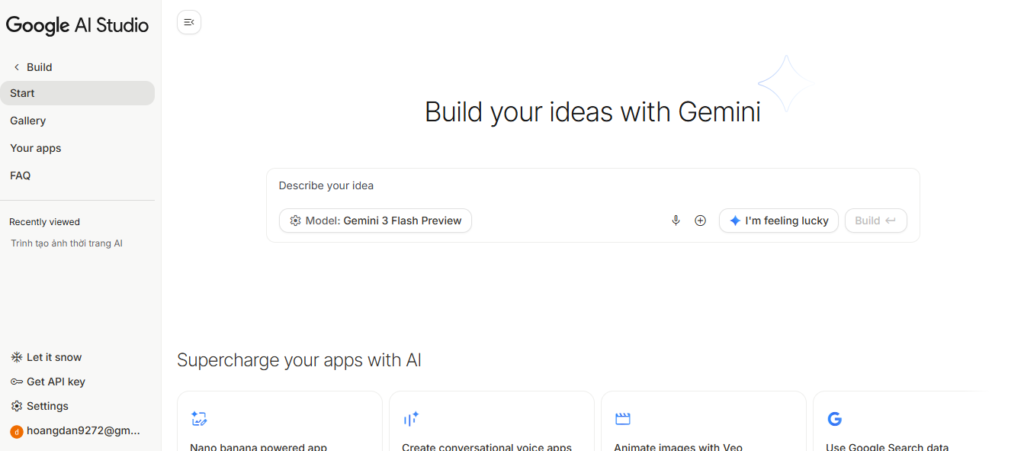
Let’s walk through the exact interface. I have used this workflow hundreds of times.
Step 1: Create New Prompt Open Google AI Studio and click on “Create New.” You want to select “System Instructions” mode (sometimes labeled as “Chat Prompt” where you can edit the System prompt).
Step 2: The “System Instructions” Box This is the most critical part. Unlike a normal chat, whatever you type here is the “Law” for the AI. It will never break character. This is where we paste the specific logic for our AI mini app builder.
Step 3: Testing On the right side, you have the “Run” or “Test” window. This is where you act as the user.
Below are the 6 specific apps I built using this exact method, including the raw prompts you can copy.
App 1: The AI Thumbnail Maker (CTR Booster)
As a content creator, I struggle with “Thumbnail Block.” I built this app to solve that. It doesn’t generate the image itself (yet), but it generates the architecture of a high-CTR thumbnail.
The Logic: The app analyzes the video concept and uses psychological triggers to suggest visuals.
System Instruction Prompt:
“You are OPAL, an expert YouTube strategist specializing in Click-Through Rate (CTR). Your goal is to create high-converting thumbnail concepts.
When a user inputs a Video URL or Title/Description:
Analyze the core hook and emotional angle.
Generate 4 distinct thumbnail concepts.
For each concept, provide:
Text Overlay: (Max 3 words, punchy).
Visuals: Describe the imagery, facial expressions, and composition.
Color Psychology: Suggest contrasting colors (e.g., Yellow on Black).
Font Style: Modern, Bold, Sans-serif.
Select the ‘Winner’ and explain why it will get the highest CTR based on human psychology.”
My Experience: I used this for a client’s video about ” SEO Trends.” The app suggested a thumbnail with a tombstone saying “SEO is Dead?” in red text. The CTR jumped by 14%.
App 2: YouTube to Blog Converter (SEO Engine)
This is my favorite Google AI Studio for personal productivity hack. I hate transcribing videos. This app takes a URL and outputs a formatted blog post.
The Logic: It forces the AI to act as an SEO writer, not just a summarizer.
System Instruction Prompt:
“You are a Senior SEO Blog Writer with 10 years of experience. Input: A YouTube Video Transcript or URL. Task: Convert the video content into a comprehensive, SEO-optimized blog post (minimum 1500 words).
Structure Requirements:
Catchy Title containing the main keyword.
Introduction: Hook the reader immediately.
Body: Break down into 5 distinct H2 sections. Use bullet points for readability.
Tone: Professional yet conversational.
Image Prompts: Suggest 2 detailed prompts for AI image generators (Midjourney/DALL-E) to create relevant visuals.
Output: Markdown format.”
Pro Tip: Since Gemini 1.5 Pro has a massive context window (1M+ tokens), you can paste an entire hour-long transcript, and it won’t forget the beginning.
App 3: Personal Productivity Planner
I used to use complex Notion templates. Now, I use this no-code mini app builder by Google to sort my day.
System Instruction Prompt:
“You are an Elite Executive Assistant. Input: A dump of tasks, deadlines, and current energy levels. Output: A structured ‘Time-Blocked’ schedule.
Rules:
Group ‘Deep Work’ tasks for the morning.
Schedule calls and emails for the afternoon (low energy).
Insert mandatory 15-minute buffers between blocks.
If the list is unrealistic, ruthlessly prioritize and suggest moving tasks to tomorrow.”
App 4: The Smart Quiz Generator
This is brilliant for students or corporate trainers using Google AI Studio.
System Instruction Prompt:
“You are an Educational Technologist. Input: A text block, article URL, or video transcript. Output: An interactive quiz.
Format:
5 Multiple Choice Questions (A, B, C, D).
3 True/False Questions.
Answer Key: Hidden at the very bottom.
Explanation: For every answer, explain why it is correct in one sentence.”
App 5: Social Media Content Engine
Running out of ideas is a pain point for every marketer. I built this to ensure I never face a blank page.
System Instruction Prompt:
“You are a Viral Content Creator for LinkedIn, Twitter, and TikTok. Input: A broad topic (e.g., ‘Artificial Intelligence’).
Deliverables:
5 Viral Hooks/Post Ideas: Focus on contrarian views or actionable lists.
5 Captions: Engaging, asking questions to drive comments.
Hashtag Strategy: Mix of high-volume and niche tags.
Tone: Authentic, slightly provocative, authority-building.”
App 6: Habit Tracker & Motivator
This is a simple usage of no-code AI tools, but highly effective for mental health and discipline.
System Instruction Prompt:
“You are a Compassionate Accountability Coach. Input: User’s daily habit list and status (Done/Not Done).
Actions:
If ‘Done’: Celebrate with high energy.
If ‘Not Done’: Offer gentle encouragement, analyze the obstacle, and suggest a ‘micro-step’ to get back on track. Do not shame.
Weekly Review: Summarize progress every 7th interaction.”
Technical Deep Dive: Parameters & Settings
To truly master Google AI Studio, you can’t just rely on the text prompts. You need to tweak the controls on the right panel. Here is my expert configuration:
1. Temperature (Creativity vs. Precision)
-
For the Thumbnail & Social Media App: Set Temperature to 0.9 or 1.0. You want the AI to be wild, creative, and unpredictable.
-
For the Blog Converter & Planner: Set Temperature to 0.3. You want adherence to facts and structure, not hallucinations.
2. Safety Settings
I usually turn these to “Block Few” for personal apps. Sometimes, discussing topics like “medical SEO” or “crime thrillers” can trigger overly sensitive safety filters. Adjusting this ensures your app doesn’t break mid-sentence.
3. Model Selection
-
Gemini 1.5 Pro: Use this for the Blog Converter (App 2) and Quiz Generator (App 4). It has better reasoning capabilities.
-
Gemini 1.5 Flash: Use this for the Habit Tracker and Social Media Ideas. It is lightning fast and efficient.
Troubleshooting: Common Errors & Fixes
I have spent sleepless nights debugging these prompts so you don’t have to. Here are the most common issues when you build mini apps with Google AI Studio:
Problem 1: The AI “Forgets” the Format
-
Symptom: You asked for a table, but it gave you a list.
-
Fix: In your System Instructions, add “Output MUST be in Markdown Table format. Do not use any other format.” Capitalizing “MUST” actually helps the model pay attention.
Problem 2: JSON Errors in Output
-
Symptom: If you are trying to generate code or data, the brackets are often missing.
-
Fix: Switch the “Response MIME type” in the settings to
application/json. This forces the model to output valid JSON.
Problem 3: The “I cannot access this URL” Error
-
Symptom: You paste a YouTube link, and it says it can’t watch it.
-
Fix: Google AI Studio cannot browse the live web like Perplexity. You must either copy the transcript manually or, if the video is in your Google Drive, connect Drive to Gemini. For YouTube, pasting the transcript is currently the most reliable method in the free tier.
Conclusion
Google AI Studio has democratized software development. You no longer need a degree in computer science to create tools that save you 10+ hours a week.
We successfully covered how to build AI apps without coding, focusing on six distinct examples ranging from productivity to content creation.
My final advice: Don’t just copy my prompts. Tweak them. Add your specific constraints. The power of these no-code AI tools lies in how well you can articulate your specific needs into the System Instructions.
Go build something today.
FAQ: Google AI Studio & No-Code Apps
Is Google AI Studio free to use?
Yes, as of early 2026, Google AI Studio offers a generous free tier that allows developers and individuals to prototype and build mini-apps using models like Gemini 1.5 Pro and Flash without an immediate cost, although rate limits do apply.
Can I publish these mini-apps to the App Store?
Not directly. Google AI Studio is a backend logic builder. To publish to the App Store, you would need to connect your AI Studio project to a frontend interface (like Flutter or React) using the API key generated in the studio.
How does Google AI Studio differ from Vertex AI?
Google AI Studio is designed for rapid prototyping and individual developers (fast, easy, no-code focus). Vertex AI is an enterprise-grade platform within Google Cloud meant for scaling, managing, and deploying machine learning models with robust security and infrastructure.
Do I need to know coding to use Google AI Studio?
No. You can utilize the “System Instructions” feature to build functional text-based applications using natural language. However, basic knowledge of logic structure helps in refining the output.